![kt-logo-kb.png]](https://support.kindertales.com/hs-fs/hubfs/kt-logo-kb.png?height=40&name=kt-logo-kb.png)
What's in this article
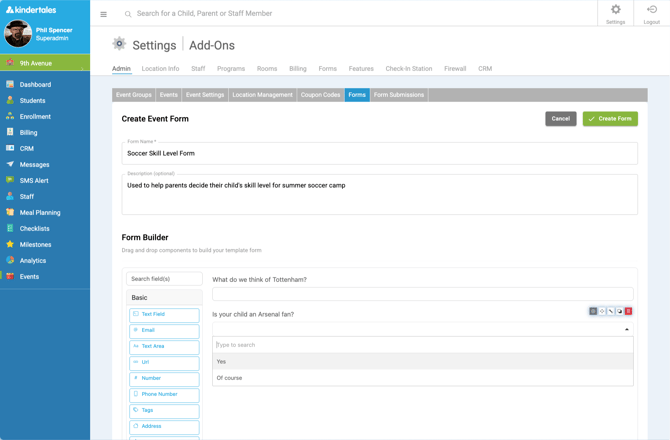
Creating Custom Event Forms
- Log in as a superadmin.
- Navigate to the dedicated "Forms" tab in the Events administration panel.
- Click "Create Form".
- Use the form builder to add fields relevant to your program.
- Save the form with a clear and descriptive name.
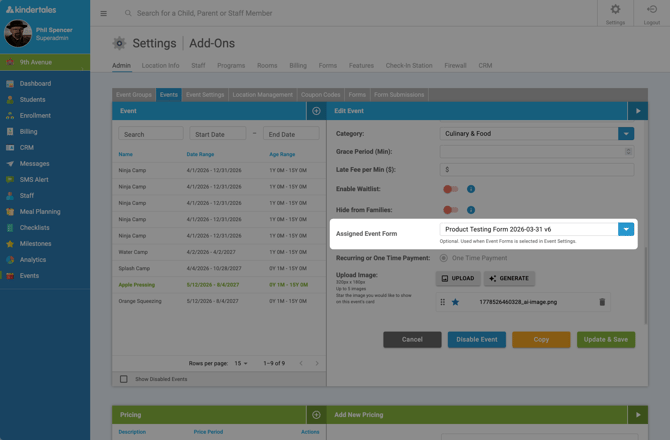
Assigning Forms to Specific Events
- Open the Event you want to assign a form to.
- Locate the "Assigned Event Form" dropdown.
- Select the required custom form from the list.
- Save the event settings.
- Assigned forms will be required to be completed by parents after purchase for that event.
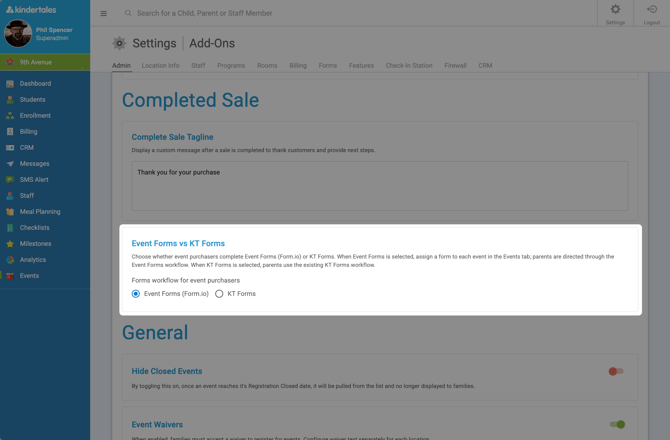
Configuring Forms Workflow
- Navigate to Event Settings > Event Forms vs KT Forms.
- Choose whether parents complete Event Forms or Kindertales Forms.
- This setting configures messaging to guide parents to the appropriate forms.
- Save your workflow configurations.
Additional Notes
- Only one form can be assigned to an event.
- Forms show completion status and completed date on Family Profiles > To Do section.
Contact the support team for help building or configuring your custom event forms.