![kt-logo-kb.png]](https://support.kindertales.com/hs-fs/hubfs/kt-logo-kb.png?height=40&name=kt-logo-kb.png)
Deleting Enrollments
Deleting an enrollment from an event in Kindertales follows the same steps as deleting any enrollment. However, there’s an important nuance with event enrollments: Events automatically have an End Care date built in, unlike most standard enrollments where this date is added manually. This means you will encounter a situation where the End Care date needs to be undone before you can fully delete the enrollment. While this is technically expected behavior, it’s important to understand how to handle this process.
To Delete an Enrollment
- Navigate to the Child’s Profile: Use the search bar or students page to find the specific child.
-
-
Go to Programs & Billing: Click the Programs tab under the Programs & Billing section.
-
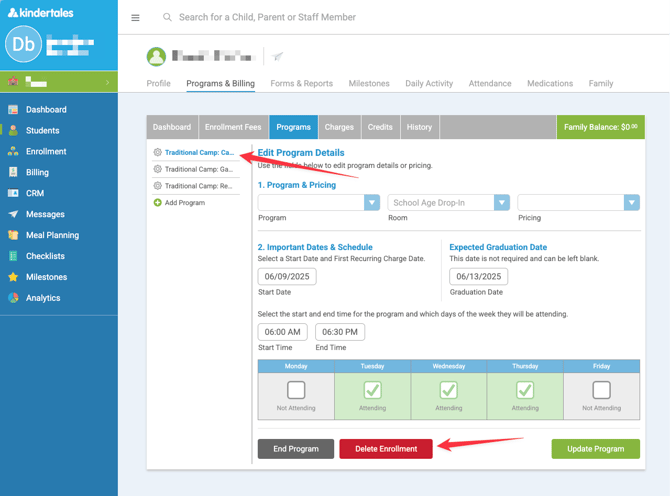
Select the Event Enrollment: In the left menu, locate the event enrollment you want to delete and click on it.
-
Click the Delete Enrollment Button: Click Delete Enrollment at the bottom of the event details.
-
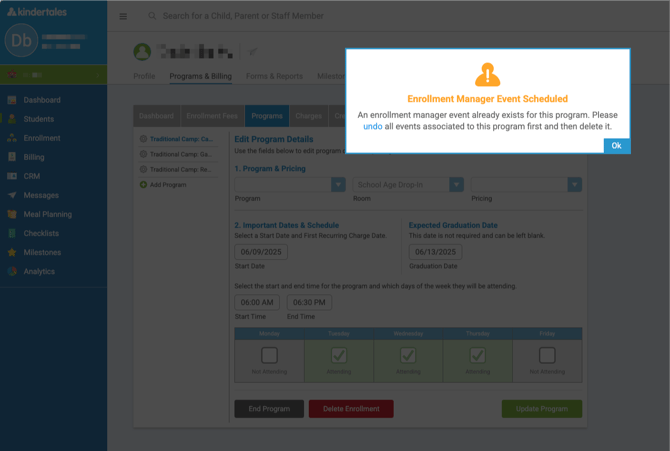
Address the End Care Warning: Since the enrollment has an "End Care" date already set, you’ll receive a pop-up message prompting you to resolve this. Click OK to be redirected to the Enrollment Manager, where the child’s row is automatically expanded and scrolled to for convenience.
-
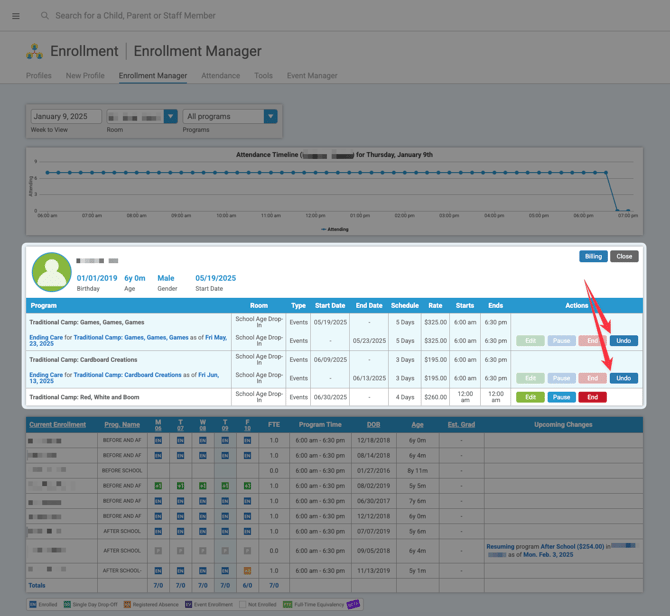
Undo the End Care Date: Locate the event row for the child in the Enrollment Manager. Click the Undo button in the Actions column.
-
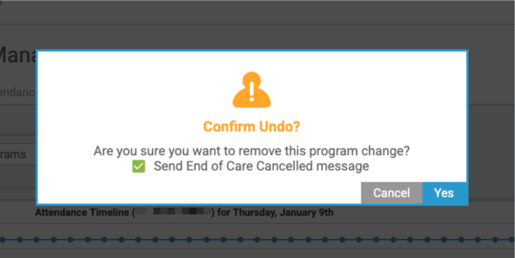
Confirm the Change: A confirmation message will appear. You can choose to send the "End of Care Cancelled" email if applicable. Confirm the change.
-
Return to the Child’s Profile: Click the child’s icon or navigate back to their profile page.
-
Delete the Enrollment: Go back to the Programs & Billing tab, select the event, and click Delete Enrollment once more.
-
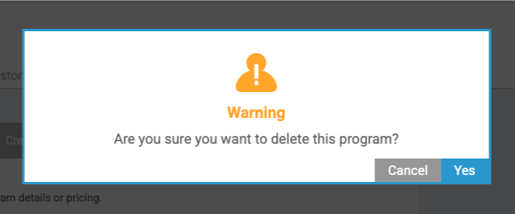
Confirm the Deletion: A pop-up will appear to confirm the deletion. Click Yes to finalize the process.