![kt-logo-kb.png]](https://support.kindertales.com/hs-fs/hubfs/kt-logo-kb.png?height=40&name=kt-logo-kb.png)
Use these steps to give a staff user access to CRM+.
Steps
- Go to Settings.
- Click Staff.
- Open Admin Staff.
- Find the staff member and click Edit.
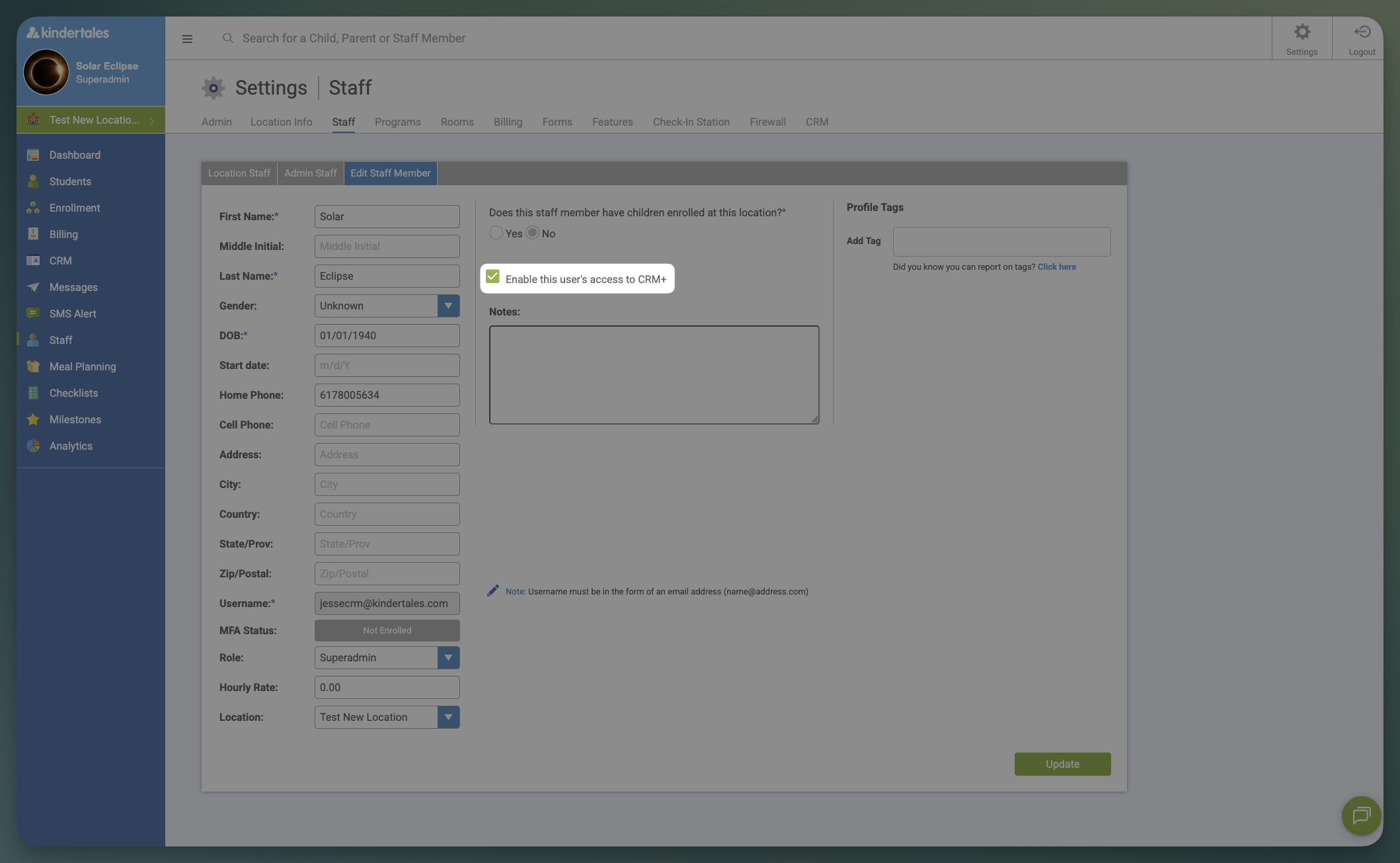
- Check Enable this user's access to CRM+.
- Verify the staff member has access to the correct location(s).
- Click Update.
Troubleshooting
If the user’s CRM+ access isn’t working, return to Settings > Staff > Admin Staff, open the staff member’s Edit page, uncheck Enable this user's access to CRM+, click Update, then check it again and click Update. This often resolves access issues.