![kt-logo-kb.png]](https://support.kindertales.com/hs-fs/hubfs/kt-logo-kb.png?height=40&name=kt-logo-kb.png)
What's in this article
- Setting up location-specific logos
- Customizing hero background colors
- Setting personalized hero taglines
Setting Up Location-Specific Logos
- Log in as a superadmin.
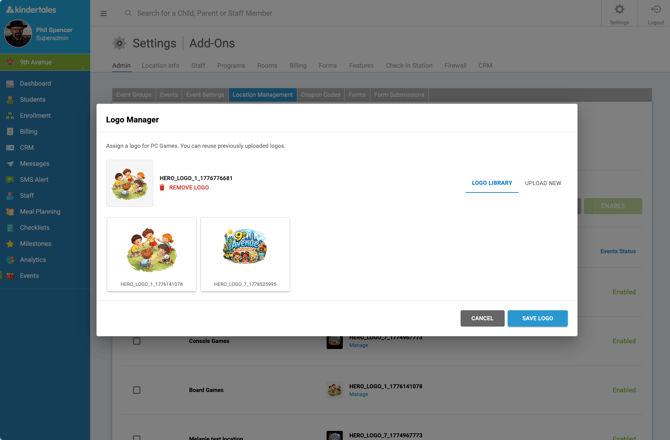
- Navigate to the Events > Location Management page.
- Click Manage under the location logo you’d like to edit.
- Upload or select a unique logo for this location. Logos previously uploaded are available in the reusable logo library.
- Save the logo.
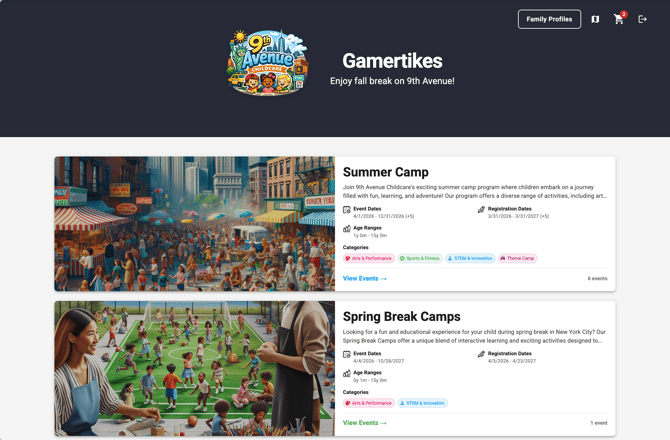
- The location’s public-facing Events pages will automatically display the correct logo.
Customizing Hero Background Colors
- Navigate to the Events Settings > Hero Background Color.
- Select a background color. The system automatically prevents white backgrounds.
- Save your settings.
- The Events homepage hero section for this location will display using the chosen color. You can also lock the hero background color for all locations.
Setting Hero Taglines
- Navigate to the Events Settings > Hero Tagline.
- Enter a marketing message or tagline that represents the location’s unique value proposition.
- Save the settings.
- The tagline will appear prominently on the hero section of the location’s Events site.
For help or questions, reach out to the support team. Enhance your multi-location branding today!