![kt-logo-kb.png]](https://support.kindertales.com/hs-fs/hubfs/kt-logo-kb.png?height=40&name=kt-logo-kb.png)
What's in this article
- What are Name-to-Face Checks?
- Turning on Name-to-Face Checks
- When Name-to-Face Checks are required
- How to complete a Name-to-Face Check
- Completing manual Name-to-Face Checks
What are Name-to-Face Checks?
Name-to-Face Checks are a mandatory safety practice designed to ensure no child is left behind during transitions. This feature requires you to visually confirm every student and match them to a physical attendance roster, helping you maintain compliance with safety standards and keeping children in your center safe.
Turning on Name-to-Face Checks
To enable Name-to-Face Checks in your center:
- Navigate to Settings
- Click Features
- Toggle on Name-to-Face Checks
Once enabled, children who are checked in will display the Name-to-Face icon when it's time to complete a check.
When Name-to-Face Checks are triggered
Name-to-Face Checks are automatically triggered in three situations:
- Upon initial check-in - When a child first arrives at your center
- When moving rooms - During transitions between classrooms or areas
- After the default timer expires - Every 15 minutes by default
When a Name-to-Face Check is required, you'll see the Name-to-Face icon next to the child's name.
How to complete a Name-to-Face Check
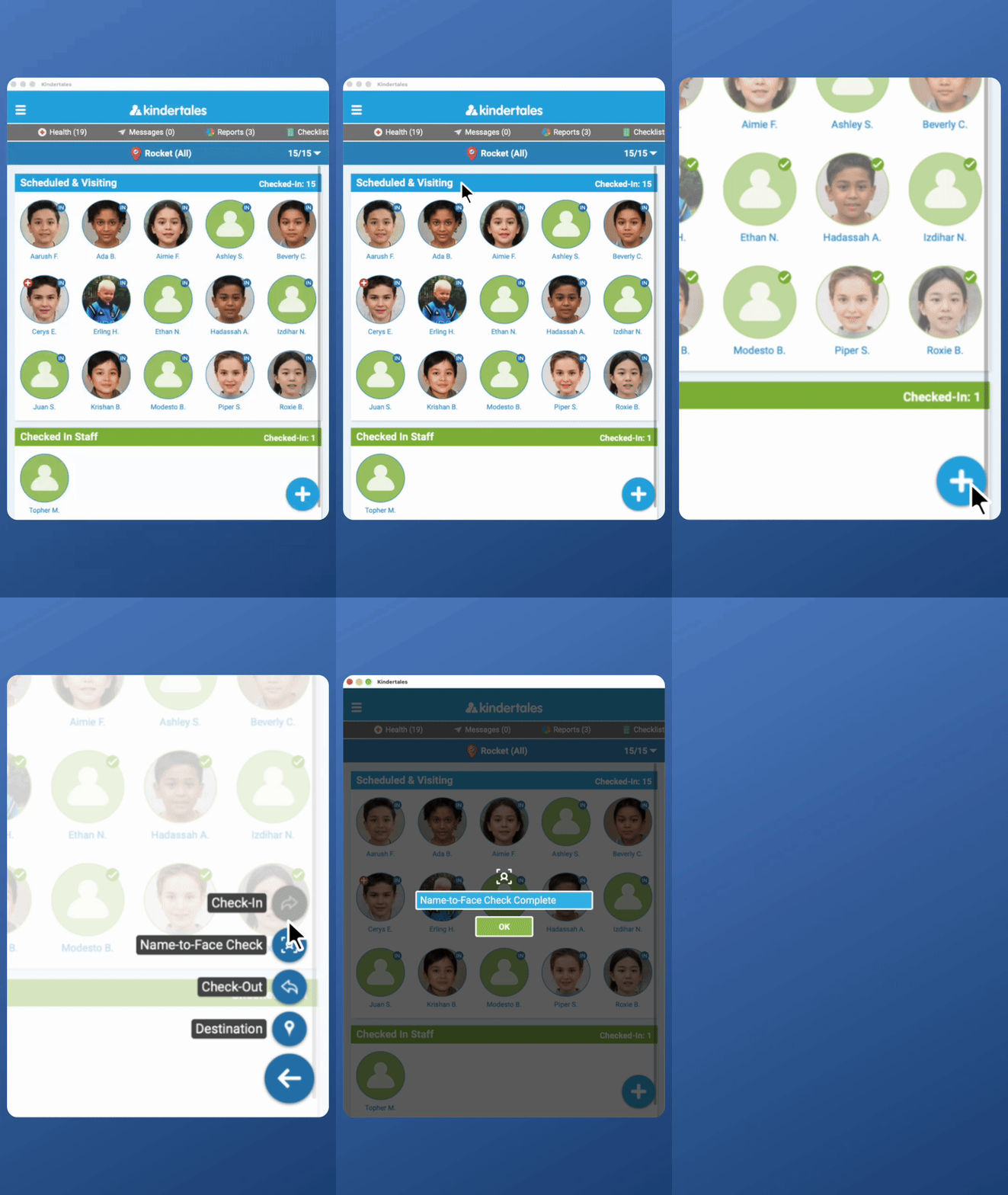
To complete a Name-to-Face Check:
- Select the children you are completing a Name-to-Face Check for
- Click the Action menu
- Click Attendance
- Click Name-to-Face Check
You'll receive a confirmation once the check is complete.
Completing manual Name-to-Face Checks
If you need to complete a one-off Name-to-Face Check outside of the automatic triggers, follow the same process:
- Select the children you want to check
- Click the Action menu
- Click Attendance
- Click Name-to-Face Check
This allows you to perform additional safety checks whenever needed to keep children in your center safe.